
App to Free Up Space on iPhone: Clear Storage Fast
Try an app to free up space on iphone and clear storage fast. Find duplicate photos, remove clutter, and make room for what matters with an easy cleanup tool.
For camera-roll clutter, Clever Cleaner is a strong app choice, while iPhone’s built-in tools are the better first stop for apps, messages, and downloaded shows. A dedicated app to free up space on iPhone can help sort photos and videos, but it cannot clean every kind of storage.
The first move is finding out whether media, apps, messages, or downloaded files are behind the alert. Clever Cleaner focuses on photos and videos; iPhone settings offer controls for other categories. That distinction saves time and helps prevent deleting data that matters.
A full-storage alert is easier to tackle once the largest category is identified.
Key Takeaways
- Clever Cleaner is aimed at photo and video clutter.
- iPhone settings handle apps, messages, and downloads.
- Check the storage breakdown before removing files.
- Review selected media before confirming cleanup.
- Sync settings can affect photos on other devices.
Which App to Free Up Space on iPhone Works Best?
For a free, media-focused cleanup, Clever Cleaner is the clearest fit among the listed options. It is a photo-and-video cleanup app, not a universal cleaner for every kind of iPhone data.
Clever Cleaner ranked first among 10 apps in 2026, with a 5.0 score. Its free tools include similar-image detection, large-video cleanup, screenshot cleanup, Live Photo conversion, swipe-based cleanup, Smart Cleanup, and photo and video compression.
The best free app to free up space on iPhone is Clever Cleaner when photos and videos are the problem; built-in settings suit other storage categories.
Prices and free status differ across the listed apps. Cleanup: Phone Storage Cleaner free is not the listed offer: Cleanup: Phone Storage Cleaner costs $11.99 per week or $49.99 for a lifetime purchase.
| Cleaner | Price listed in 2026 | Main angle |
|---|---|---|
| Clever Cleaner | Free | Photos, videos, screenshots, and Live Photos |
| Cleanup: Phone Storage Cleaner | $11.99 per week; $49.99 lifetime | Cleaner app |
| Boost Cleaner – Clean Up Smart | $6.99 per week to $49.99 per year | Cleaner app |
| CleanMy® Phone: Cleanup Storage | $9.99 per month; $44.99 lifetime | Cleaner app |
| Easy Cleaner | Free | Contact cleanup |
| Slidebox: Photo Cleaner App | $1.99 per week to $34.99 lifetime | Cleaner app |
| AI Cleaner: Clean Up Storage | $11.99 per month; $49.99 per year | Cleaner app |
| Cleaner Neat: Clean Up Storage | $7.99 per week; $49.99 per year; $119.99 lifetime | Cleaner app |
| Cleaner Kit – Clean Up Storage | $6.99 per week; $29.99 per year | Cleaner app |
| Simple Cleaner – Clean Storage | $3.99 per week; $39.99 lifetime | Cleaner app |
CCleaner is another iPhone cleaner, but it requires iOS 16 or newer. Its free Secret Files vault holds up to 10 images or videos, while duplicate, similar, and bad-photo cleanup requires the paid version. It also offers contact cleanup and Quick Clean, not unrestricted access to every system cache.
Compare a paid plan’s renewal terms with how often the cleanup tools will actually be needed.
What Takes Up iPhone Storage?
Photos and videos, Messages, downloaded videos, Files documents, and apps are the common storage-heavy categories on an iPhone. Settings shows which category is largest on a specific device.
To see the breakdown, open Settings > General > iPhone Storage. The usage summary appears at the top, followed by categories and individual apps. The biggest item can differ from one phone to another, even when both show the same full-storage alert.
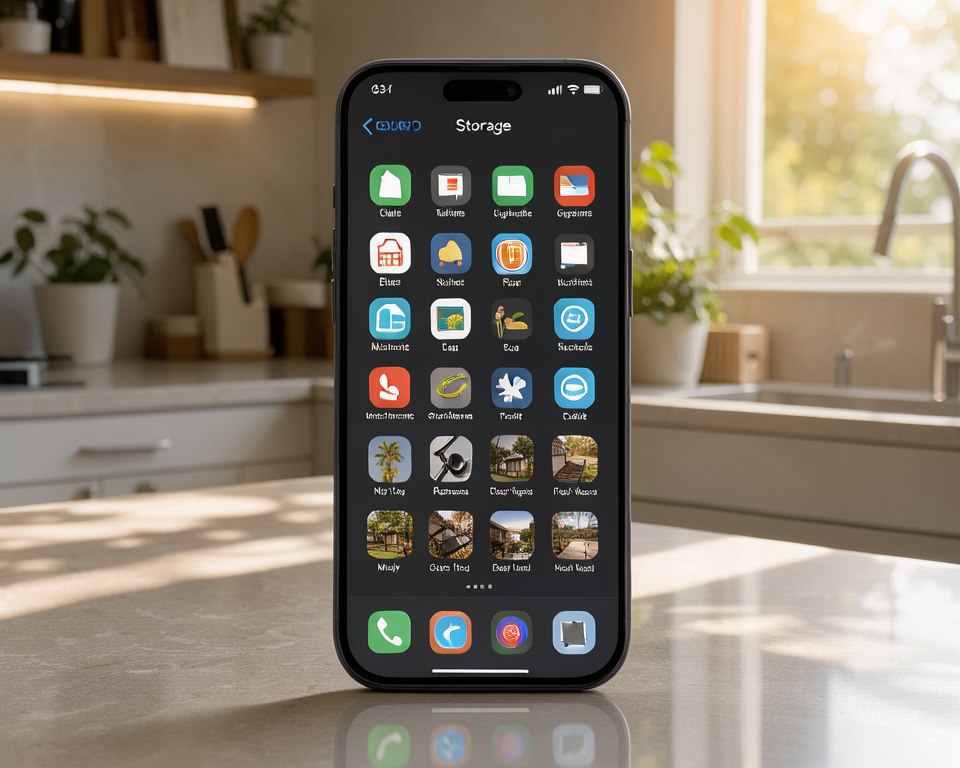
Messages attachments, offline shows, and large documents can quietly build up alongside a photo library. A few long videos may also take more room than many small images, so the category view is a better guide than guessing from the Home Screen.
System Data can include caches, logs, diagnostics, downloaded iOS updates, Siri data, and temporary app data. It is typically 2-8 GB, elevated at 8-15 GB, and excessive above 15 GB. System Data size ranges help put that number in context, but a cleaner app cannot treat all of it as removable junk.
Compare the category sizes in Settings before choosing what to remove.
Built-In Ways to Free Space Before Installing a Cleaner
An iPhone can often reclaim space without a cleaner by removing offline media and unneeded message or Files attachments. Offloading means removing an unused app from the iPhone while keeping its documents and data so the app can be reinstalled later.
Offloading keeps an app’s saved data; deleting the app does not. These built-in options cover common files without adding a new cleanup app or giving it photo access.
- Review watched offline videos in the TV app or streaming apps, then remove downloads that are no longer needed.
- Delete unneeded Messages conversations and attachments to clear space occupied by old exchanges.
- Remove documents no longer needed from Files, including downloaded copies kept on the device.
- Enable Offload Unused Apps at Settings > Apps > App Store.
Offloading can also happen automatically when storage is low. The app icon stays on the Home Screen with a cloud symbol, and tapping it provides a route to reinstall the app.
That is useful for an app that may be needed again, such as a travel or event app. Its documents and data remain on the iPhone during offloading, ready for the app when it is reinstalled.
Offload an app only when keeping its data for a later reinstall is useful.
Clever Cleaner Tools for Photos and Videos
Clever Cleaner focuses on camera-roll tasks that can take time to sort manually. It is a free cleanup app for photo and video clutter, with daily allowances for most tools.
People stay in control by reviewing grouped media before deleting it. The app also supports iPads in compatibility mode, so its interface may appear as an iPhone app on an iPad.
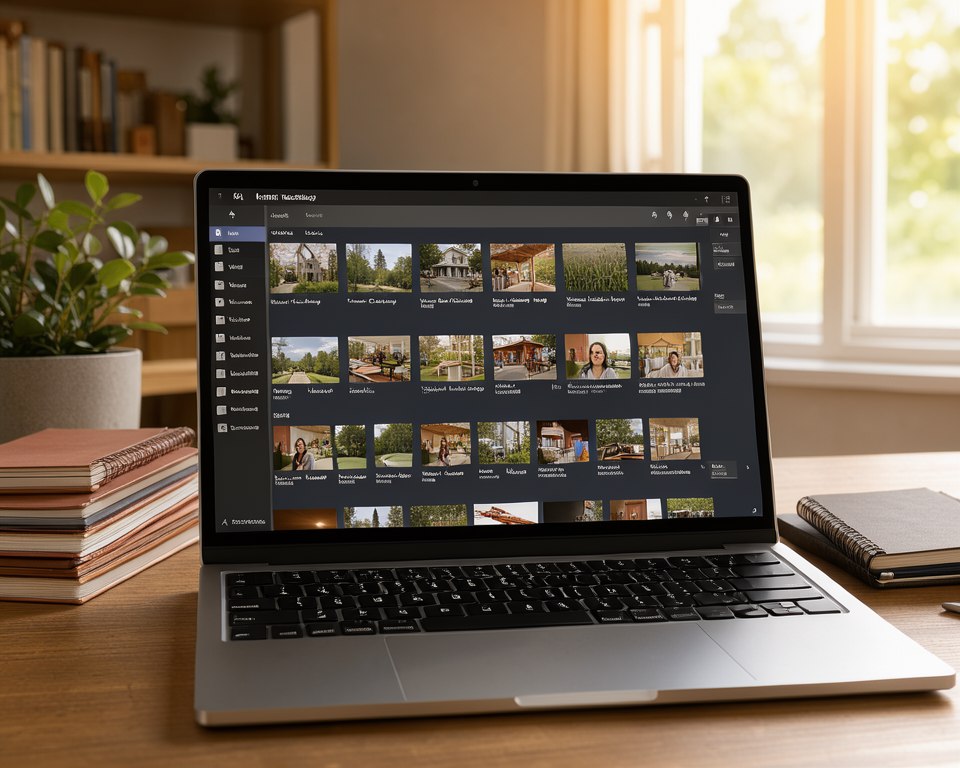
A basic workflow keeps the scan and selection separate:
- Open Clever Cleaner and grant photo-library access.
- Let the scan finish before reviewing the results.
- Check the grouped results and open items that need a closer look.
- Choose items manually or set Smart Cleanup options before confirming.
Group Duplicate and Similar Photos
Clever Cleaner identifies duplicate and similar photos, grouping images that may look alike. That makes it easier to spot repeated shots, but a similar-photo group still needs human review.
Two pictures can look nearly identical while capturing different expressions, details, or moments. A cleaner cannot know which image matters most to its owner, so the final choice belongs with the person reviewing the library.
Sort Large Videos and Screenshots
The large-video tool lists videos from largest to smallest. Starting at the top can help identify a single long recording that takes more space than several smaller clips.
Screenshots can also collect in a library long after their useful details have passed. Smart Cleanup can be configured to compress screenshots, while the review step gives the user a chance to keep references that still matter.
Compress Media and Convert Live Photos
Clever Cleaner includes photo and video compression. Compression can reduce file size, but the result can affect image or video quality, so it is worth checking the available settings before applying it to important media.
Smart Cleanup can be set to mass-delete duplicates and similar photos, compress screenshots, and convert Live Photos. A Live Photo includes a short video component; converting it to a still image removes that motion portion.
Keep a best shot from each similar-photo group before confirming any bulk selection.
What Free Limits and iOS Restrictions Mean
A cleaner app can organize and remove selected media, but iOS does not let it freely wipe another app’s cache or general system data. Third-party cleaners mainly work with photos and videos, not every kind of iPhone junk.
System Data and caches created by other apps are outside a cleaner’s direct control. This is why a media cleanup may leave a storage reading largely unchanged when another category is taking up the space.
Cleaner Apps Cannot Clear Every Kind of Data
iOS limits what one app can access in another app’s private storage. A cleaner can work with media the user lets it access, but it cannot freely clear other apps’ caches or all system data.
Media deleted through a cleaner moves to Photos’ Recently Deleted album rather than disappearing permanently at once. That gives the user a recovery window, so the first deletion may not immediately return all of the media’s space.
Check Privacy, Free Limits, and Purchase Terms
Clever Cleaner says similar-photo analysis runs locally on the iPhone and does not upload user data. Its separate privacy details say identifiers may be used for tracking, identifiers and usage data may be linked to identity, and purchases and diagnostics may be unlinked; practices can vary by feature.
The app listing gives an iOS 16 minimum, a 134.2 MB size, and a 4.8 out of 5 rating from 85K ratings. The Swipe tool has no usage restrictions, while other cleanup tools have free daily allowances that refresh each day.
The listed weekly plan is $6.99 with a 3-day free trial, or $19.99 for a lifetime purchase. The weekly trial terms charge the weekly plan when the trial ends unless it is canceled at least 24 hours before. The Skip List can keep selected photos or videos out of cleanup.
Check the current in-app purchase screen and privacy details before starting a trial.
Protect Photos and iCloud Before Deleting
Optimize Storage is the choice for saving device space while keeping full-resolution originals in iCloud. Download and Keep Originals instead stores full-resolution files on the iPhone, using more local storage.
An Apple Account includes 5 GB of free iCloud storage for backups, iCloud Photos, and iCloud Drive. iCloud Photos stores originals in formats including HEIF, JPEG, RAW, PNG, GIF, TIFF, HEVC, and MP4.
| Setting or state | What stays on iPhone | Storage or sync effect |
|---|---|---|
| Optimize Storage | Space-saving photo and video versions | Full-resolution originals stay in iCloud |
| Download and Keep Originals | Full-resolution originals | Uses more iPhone storage |
| iCloud storage full | Existing local files remain | Backups stop; new media does not upload; iCloud apps may stop syncing |
With Optimize iPhone Storage, iCloud keeps originals at full resolution and the iPhone holds space-saving versions. As more device space is needed, the library optimizes items starting with those accessed least often. The initial upload time depends on collection size and internet speed.
Choose Between Optimized Storage and Originals
Optimize Storage suits a phone with limited local capacity. Download and Keep Originals suits someone who wants full-resolution files stored on the device, provided enough iPhone storage is available.
Understand iCloud Photos Sync and Recovery
Deleting a photo or video in iCloud Photos on one device deletes it across devices signed in to the same Apple Account.
Deleted photos and videos can be recovered from Recently Deleted for 30 days. Before removing media, use this checklist:
- Confirm the Apple Account used on all devices.
- Keep a backup of items that must be retained.
- Recover deleted photos from Recently Deleted within 30 days.
When iCloud storage is full, the iPhone will not back up to iCloud, new photos and videos will not upload to iCloud Photos, and iCloud Drive and other iCloud apps will not stay up to date across devices.
Treat a deletion in iCloud Photos as a deletion across every device signed in to the same Apple Account.
Conclusion
A focused media cleanup is a better fit than expecting one app to clear every kind of iPhone data. Clever Cleaner can help when photos and videos create the main clutter, while built-in settings address other kinds of storage.
The practical next step is to review Clever Cleaner’s current App Store terms before choosing a plan. The free daily tools may be enough for occasional cleanup, while a paid option only makes sense when its limits fit the regular task.
Before starting a trial, check the current subscription terms and decide whether the free daily tools meet the cleanup need.
FAQ
What is the best free phone cleaner app?
Clever Cleaner is the strongest free fit for photo and video cleanup, while iPhone’s built-in storage tools handle messages, apps, and downloads. Its media tools can group similar images, flag large videos, and help manage screenshots. Most features have daily allowances, so the free option works best when the cleanup need is occasional rather than constant.
Does Apple have a free clean up app for iPhone?
Apple does not provide a separate cleaner app, but iPhone includes storage recommendations and controls at Settings > General > iPhone Storage. That screen shows how much space apps and other categories use, with options for managing some content. Built-in tools are the better place to start for messages, apps, and offline downloads.
What happens if I turn on Optimize iPhone storage?
Space-saving versions of photos and videos stay on the iPhone while full-resolution originals remain in iCloud. The device optimizes the library as more local space is needed, starting with items accessed least often. This setting can reduce the space used by a large library, but it depends on iCloud Photos and available iCloud storage.
Should I do optimize iPhone storage or download and keep originals?
Optimize Storage is the better choice for an iPhone with limited space; Download and Keep Originals keeps full-resolution files on the device and needs more local storage. The first setting stores originals in iCloud and space-saving versions on the iPhone. The second is more suitable when local space is available and full-resolution files should remain on the device.
How long does it take to optimize iPhone storage?
There is no fixed time for the initial iCloud Photos upload; collection size and internet speed determine how long it takes. Once originals are in iCloud, iPhone optimization happens as more device space is needed. A large library or slower connection can extend the upload, so the phone may not free its full potential space immediately.
Is the Optimize storage app safe?
Optimize Storage is an iPhone setting, not a separate app. It keeps space-saving versions on the device while full-resolution originals stay in iCloud, but iCloud Photos sync affects every device using the same Apple Account. Deleting a synced photo on one device deletes it on the others, and Recently Deleted holds deleted media for 30 days.