
Free Online Course for Excel With Certificate: Excel Skills
Build Excel skills with a free online course for excel with certificate. Learn formulas, charts, and data analysis at your own pace and earn a certificate.
A free online course for Excel with a certificate can build practical spreadsheet ability, but its completion certificate may be different from a professional credential. A completion certificate is a document confirming that a learner finished a course, distinct from a professional certification earned by passing an exam.
For learners who want to work with data today and show what they have learned, the choice is not always simple. Some courses offer free lessons, while a certificate may have a separate fee. A professional exam is another route. The right choice depends on whether the learner needs practical ability, proof of course completion or a formal exam credential.
Key Takeaways
- Free lessons can teach useful spreadsheet skills, but certificate terms vary by course.
- A course-completion certificate records course progress; MOS requires passing a practical exam.
- Start with data entry, formatting, formulas and charts before exploring advanced tools.
- Excel for the web gives learners a browser-based place to practice basic tasks.
- Work samples can show what a learner can do, whether or not a certificate is included.
What Does a Free Online Course for Excel With Certificate Provide?
A course-completion certificate confirms course completion, while MOS certification requires passing a practical test. Those are different forms of proof, and a learner choosing free Excel lessons should check what the course actually awards.
Free lesson access does not guarantee a free certificate. Providers set their own completion requirements, which may include finishing lessons, passing quizzes or submitting assignments. The certificate wording matters when an employer, school or other organization requires formal proof.
Course-completion certificates
A course certificate records that a learner met the provider’s stated requirements. Those requirements can be modest, such as completing video lessons, or more involved, such as passing an assessment. A learner should read the exact award name and requirements rather than relying on a course title alone.
Some courses provide a certificate at no charge, while others charge a separate fee after free lessons. A paid certificate may still be a course-completion award, not a professional credential. Its value depends partly on whether the organization receiving it accepts that kind of proof.
Professional certification
Microsoft Office Specialist, or MOS, is a separate professional certification. Candidates earn it by passing a practical test that checks their Excel skills. Completing an Excel course can help someone prepare, but the course itself does not award MOS certification.
A professional certification shows that a candidate met the exam’s requirements. It is different from a provider-issued course certificate because the candidate must pass an exam, not just finish a course.
Skill evidence without a credential
A workbook or report can show how a learner handles a real spreadsheet task. A reviewer can inspect the data organization, formulas and final result. That sample does not certify the learner, but it can make practical ability visible.
| Proof type | What it demonstrates | Assessment | Cost condition |
|---|---|---|---|
| Course-completion certificate | Course completion | Provider-defined requirements | May be free or separately priced |
| MOS certification | Professional Excel skills | Pass a practical exam | Paid exam |
| Work sample | Ability to complete a practical task | Review of a workbook or report | No certificate fee, though course access may have its own terms |
The exact certificate wording matters when a learner needs formal proof.
A learner may need one type of proof for a resume and another for a job requirement. The certificate’s title and completion rules help clarify what it represents. A practical workbook offers a separate way to show skill without claiming a credential.
Before enrolling, the learner should decide which of these three kinds of proof would meet the intended requirement.
Excel Skills to Learn in a Useful Sequence
A useful Excel learning sequence starts with entering and organizing data, then adds formulas, charts and analysis. Reliable basics come first, since errors in a small worksheet can distort every result built on it.
Beginners can defer advanced tools until core tasks feel dependable. A learner can start by entering information, using cell references and applying formatting that makes a worksheet easy to scan. Then sorting and filtering can help reveal selected records in a small dataset.
https://www.youtube.com/watch?v=8_45YZbrV7A
Spreadsheet foundations
Start with workbook navigation, data entry, and clear formatting. A readable worksheet uses consistent dates, useful column headings and number formats that fit the data. For example, an expense sheet might keep dates in one format and show costs as currency.
Next, learners can sort names or amounts and filter a list to show only the records they need. These skills make a plain spreadsheet easier to use without changing its underlying data.
Formulas and organized data
After the basics, practice formulas and functions. SUM adds values, while IF returns a result based on a condition. A learner might use SUM to total weekly costs and IF to flag an expense above a set limit.
Use charts to make a simple pattern easier to see. A chart built from monthly sales, for example, can show whether totals rose or fell. Before combining functions, learners should understand what each formula calculates and which cells it uses.
Analysis and automation
PivotTables can summarize larger lists by category, date or other fields. Dashboards bring key figures and charts together for quick review. VBA macros can automate repeated actions, though they are not essential for everyday spreadsheet work.
Advanced Excel work can also involve data protection, such as limiting access to a workbook or protecting parts of a sheet. Beginners do not need to tackle every feature at once. A clear understanding of formulas and organized data makes later analysis less frustrating.
| Stage | Skills | Practice task |
|---|---|---|
| Foundations | Enter data, format cells, navigate a workbook | Create a clean contact or expense sheet |
| Working with data | Use SUM and IF, sort and filter | Summarize and filter a small sales list |
| Analysis and automation | Create charts and explore PivotTables or macros | Present a simple trend and identify a repetitive task |
A learner should be able to explain what a formula calculates before moving on to combining functions.
Set Up Free Excel Practice in a Browser
A learner can start practicing in a browser by signing in to Microsoft365.com with a free Microsoft account. Excel for the web runs in a browser, so basic practice does not require installing the desktop application.
A free Microsoft account includes the web versions of Excel, Word and PowerPoint, plus 5 GB of OneDrive storage. Microsoft 365 Personal and Family subscriptions include desktop apps as well as web apps. Free Microsoft 365 access includes web apps.
These four steps set up a basic practice space:
- Create a Microsoft account or sign in to an existing account.
- Open Microsoft365.com in a browser.
- Launch Excel for the web from the available apps.
- Save a practice workbook in OneDrive.
Excel for the web works well for entering data, applying formatting, using common formulas and making simple charts. A learner can use it to follow lessons and build confidence with everyday spreadsheet tasks.
Browser access is not the same as having desktop software installed. A learner who needs desktop apps should choose a Microsoft 365 plan that includes them. The free web app is a practical place to begin, especially for a small worksheet or a course exercise.
Keep a practice workbook in OneDrive so it is available after signing in again.
Compare Course Formats Before Enrolling
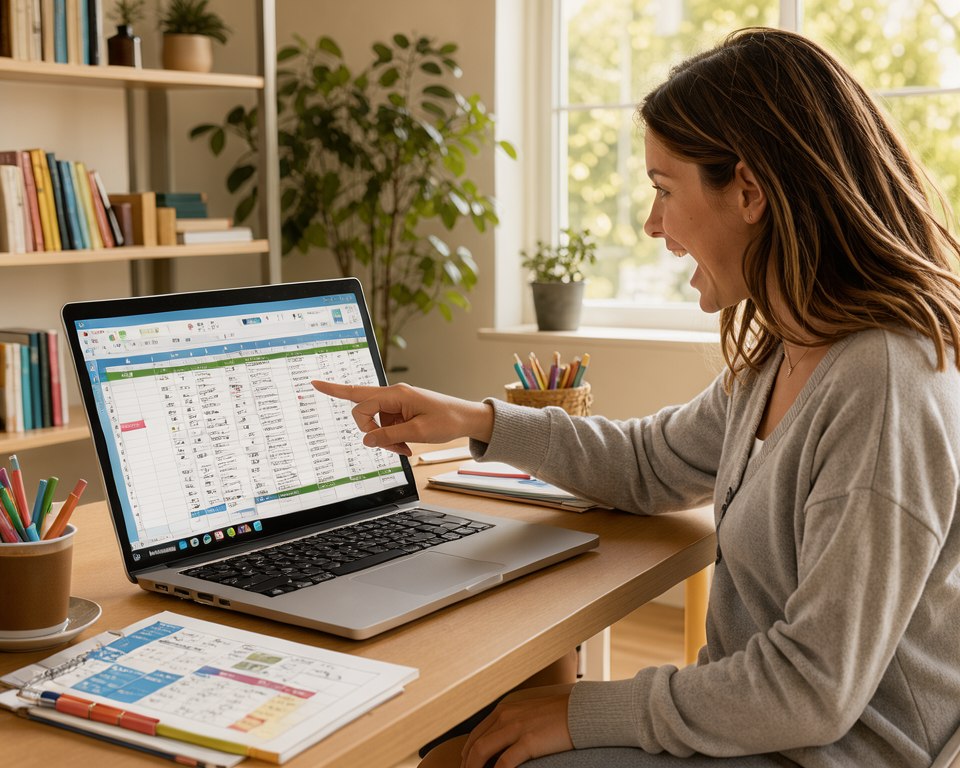
Lesson-led courses suit learners who want demonstrations, while practice-led courses suit those who learn by applying each step. The best fit is the format that leaves room to use Excel, not just watch someone else use it.
A course format label alone does not prove the depth of its lessons or the value of its certificate. Online Excel courses can combine videos, written lessons, worksheets, quizzes and assignments. Self-paced lessons let learners choose when to study, but the amount of practice still depends on the course design.
Lesson-led courses
A lesson-led Excel course often shows a feature in action, then explains the steps. Video or written examples can help learners who need to see how a formula, chart or formatting choice works. Short lessons are easier to revisit when a command is unfamiliar.
The examples should use features that match the learner’s Excel version. A lesson that depends on a newer tool may not fit someone practicing in an older desktop edition or Excel for the web.
Practice-led courses
Practice-led courses place more emphasis on exercises and worksheets. They suit learners who retain a skill by repeating it in a workbook. Assessment-led courses add quizzes or assignments to check progress, which can help identify a misunderstood step.
Feedback matters: a quiz that marks an answer wrong without explaining why may not help a learner fix the underlying mistake. Check whether exercise files open in the learner’s version of Excel and whether answers include useful explanations.
| Format | Typical materials | Best fit | What to check |
|---|---|---|---|
| Lesson-led | Short video or written lessons | Learners who need demonstrations | Whether examples use current Excel features |
| Practice-led | Worksheets and exercises | Learners who learn by doing | Whether files can be opened in their version of Excel |
| Assessment-led | Quizzes and assignments | Learners who want regular checks | Whether feedback explains incorrect answers |
Choose a format that leaves enough time for hands-on work rather than lessons alone.
Build Excel Skills Through Deliberate Practice
A short practice task after each lesson is more useful than watching several lessons without opening Excel. Small repeats help learners remember commands and catch errors while the lesson is still fresh.
Practice should check accuracy, not just whether a command was clicked. A learner can apply one feature in a fresh workbook, compare the result with an expected output and then repeat the task without following the lesson.
A simple routine has four steps:
- Study one feature, such as a formula, table or chart.
- Reproduce it in a fresh workbook without using the lesson file.
- Check the result against the expected output.
- Repeat the task without following the lesson.
Practice one concept at a time
One focused exercise can cover a SUM total or an IF condition. For SUM, enter a few sample costs and calculate their total. For IF, set a clear condition, such as marking a budget item as “Over” when it exceeds a chosen limit.
When learning formatting, apply a consistent number style and adjust column widths so the values are easy to read. Excel Tables can help keep a small dataset organized; learners can create one with Ctrl+T.
Use a realistic dataset
A small, believable dataset gives a feature a purpose. A list of fictional sales could include dates, product names and amounts. Learners can format the data, filter it by product and create a chart from the totals.
The data does not need to be large. A few rows are enough to practice sorting, filters and a basic summary. A manageable file also makes it easier to spot an incorrect formula or a missing value.
Review and repeat
After an exercise, compare the result with the expected output and find the first point where they differ. A chart may use the wrong range, or a total may omit one row. Fixing the cause builds more skill than simply repeating the clicks.
One easy-to-miss error comes from copying formulas without checking their cell references. Relative references move when a formula is copied, while absolute references stay fixed. The right choice depends on whether the formula should use a new row’s value or keep pointing to one fixed cell.
Before copying a formula down a column, check whether its cell references should move with each row.
How Much Do Excel Skills Matter in U.S. Jobs?
Excel appeared in 10.6% of tracked job posts during the 90 days ending November 22, 2026. That share signals relevance, not a promise that learning Excel or earning a certificate will lead to a job.
During that same period, 354,959 U.S. job posts mentioned Excel, and 20% of those posts offered remote or hybrid work. Excel appears in different job functions because many roles use spreadsheets to organize information, track work or prepare reports.
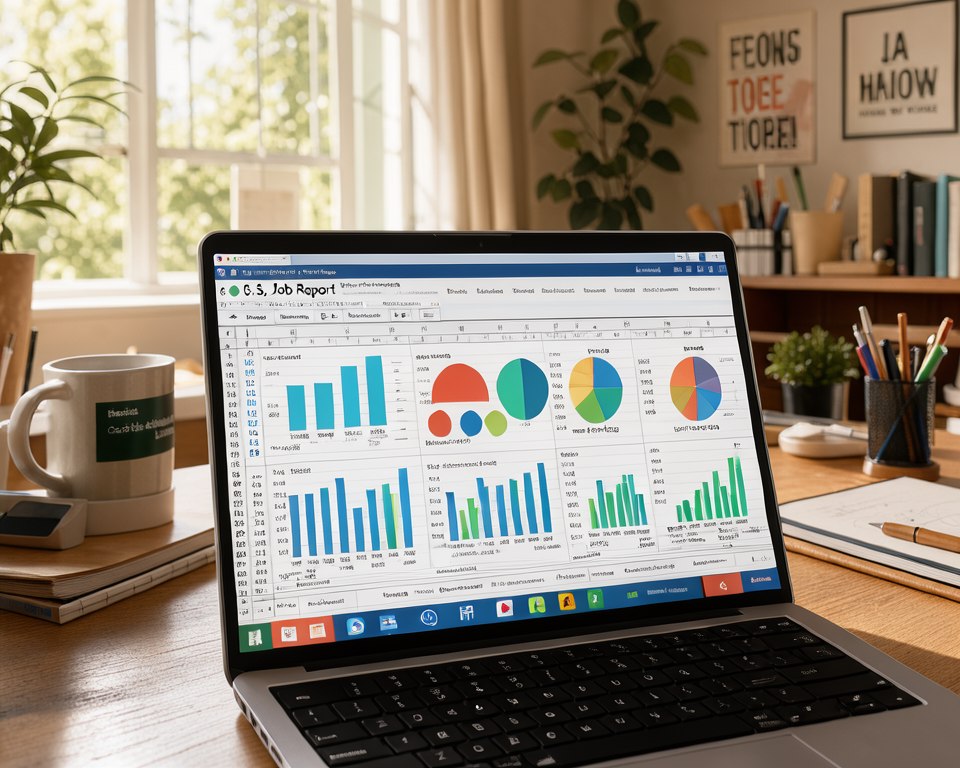
Basic Microsoft Excel skills can support office tasks such as cleaning a list, calculating totals and presenting results in a chart. The specific tasks vary by role. A job post may call for routine spreadsheet updates, while another may need more detailed data analysis.
The share of job posts mentioning Excel was down 1% in the last three completed months compared with the previous three months, as of November 22, 2026. That change does not erase Excel’s use across job types, but it shows why a single demand figure cannot describe every employer’s needs.
Remote or hybrid availability describes some postings, not a benefit that a certificate secures. Hiring also depends on the role, the candidate’s broader qualifications and the employer’s needs. Learners can use job descriptions to identify which spreadsheet tasks deserve practice.
Learners should match their practice projects to the spreadsheet tasks named in the roles they want.
Microsoft Office Specialist: Excel Associate (MO-200)
MO-200 is the Microsoft Office Specialist Excel Associate exam for Office 2019, covering practical worksheet and workbook tasks. It tests applied work, so candidates need to use Excel features rather than only describe them.
The 50-minute exam assesses workbook and worksheet management, cells and ranges, tables and table data, formulas and functions, and charts. A course can support preparation, but finishing a course does not award the MOS credential.
What the exam assesses
Exam tasks cover managing workbooks and worksheets, working with cells and ranges, and handling tables and their data. Candidates also need to use formulas and functions, then create or manage charts. These areas connect to everyday spreadsheet work, from organizing a file to presenting its results.
A preparation course is most useful when its exercises align with those tasks. A learner can use course lessons to fill gaps, then test whether they can complete the same actions in a workbook without step-by-step prompts.
Preparing for a timed practical test
Microsoft recommends approximately 150 hours of instruction and hands-on experience for candidates preparing for the Excel Associate (Office 2019) certification. The time can include lessons, guided exercises and independent practice. Candidates should focus on the exam’s stated skills, not just collect hours.
Practice workbook management, formulas, tables and charts under time limits. A timed task helps reveal where a candidate loses time, but speed alone is not enough. Candidates need to choose the right tool, enter accurate data and check that the result makes sense.
Memorizing a sequence of clicks can fail when a task uses different data or asks for a changed result. Regular practice with varied workbooks builds a stronger grasp of the task behind each command.
Voucher cost and renewal
A Microsoft Office Specialist exam voucher costs $104.00 at the Certiport store. A voucher with a retake costs $120.00. The retake option gives a candidate another attempt under the voucher’s terms, while the standard option does not include that added attempt.
The Excel Associate (Office 2019) certification has a 60-month renewal frequency. Candidates considering the exam can factor that renewal timing into their plans, alongside the cost and preparation required.
A candidate should compare the exam objectives with their practice results before buying a voucher.
Choose a Course That Matches the Certificate You Need
Before enrolling, learners should verify both the learning content and the exact credential the course awards. Clear terms make it easier to tell whether an Excel course fits the learner’s goal and budget.
The word “certificate” in a course title does not prove that the course awards MOS certification. A syllabus can name Excel topics such as sorting, filtering, formulas and charts, while the provider sets the certificate wording and completion requirements.
Before starting, check these five details:
- Confirm the course level and the Excel topics it names.
- Check whether lessons and exercises are free.
- Find out whether the certificate has a separate fee.
- Read the completion or assessment requirements.
- Confirm whether the award is a course-completion certificate or professional certification.
Course titles can make an award sound broader than it is. The syllabus shows what learners study, while the award terms say what they receive after finishing. A course may teach useful Excel skills even when its certificate is not a professional credential.
Learners who need a certificate upon completion should check which tasks count toward completion and whether assessments must be passed. Those details help prevent a mismatch between the course and the proof someone needs to provide.
Save the certificate terms and completion requirements before starting, so the learner knows what must be finished.
Turn Practice Into Evidence Employers Can Review
A small, clearly explained workbook can make Excel ability easier to assess than a certificate title alone. A work sample shows the steps, including how the learner organized data and reached a result.
A single workbook can show data organization, formulas and chart creation in one practical sample. Learners can choose a project that matches the spreadsheet tasks they want to demonstrate, then explain the question the workbook answers.
Three portfolio examples can show different kinds of work:
- A cleanly formatted budget workbook with formulas for totals.
- A filtered dataset summarized in a chart.
- A report that uses a PivotTable to group and compare data.
A budget workbook can show clear labels, consistent number formatting and formulas that update when values change. A chart-based summary can show how a learner selects useful data and makes a result easy to view. A PivotTable report adds a concrete example of analysis beyond basic calculations.
Use fictional or appropriately anonymized data, and label personal practice projects honestly rather than presenting them as workplace assignments.
For example, a fictional shop’s monthly sales can demonstrate sorting, filtering and charting without exposing private business data. A short note can identify the question, the methods used and the result. The sample should make the learner’s own work clear.
Keep one finished workbook that shows the original question, the steps taken and the result.
Conclusion
A strong first choice is a course that teaches practical Excel tasks and states its certificate terms clearly. Affordable lessons can build useful skills, while the right form of proof depends on what the learner needs to show.
Choose the course and credential that match the actual goal. A course-completion certificate can document learning, while MOS certification requires passing its practical exam. A finished workbook can also show how the learner handles data and presents a result.
The learner can start by opening Excel for the web and completing one small practice task before choosing a course.
FAQ
Can a course-completion certificate be added to a resume?
Yes, a course-completion certificate can go on a resume if the course issues one. The learner should list the provider and course name, then label the award accurately as a completion certificate. That wording tells employers the learner finished a course without suggesting the award is MOS certification or another professional credential earned through an exam.
Does a free Microsoft account include desktop Excel?
No, a free Microsoft account provides access to web apps, not the desktop Excel app. Excel for the web runs in a browser after the learner signs in. Microsoft 365 Personal and Family subscriptions include desktop apps as well as web apps, so the plan determines whether installed desktop software is included.
Can someone learn Excel without an internet connection?
Yes, someone can practice offline if they have desktop Excel installed and available. Excel for the web requires an online sign-in, so browser-based practice depends on internet access. Desktop-app access depends on the Microsoft 365 plan and installed software; a learner should have the app and workbook ready before going offline.
Is a free course certificate the same as Microsoft certification?
No, a free course certificate is not the same as Microsoft certification. A provider issues a course-completion certificate when a learner meets its course requirements. MOS certification requires passing a practical exam. A course can teach relevant skills and help with preparation, but completing it alone does not award MOS certification.
Do Excel skills alone guarantee a job?
No, Excel skills alone do not guarantee a job. Job posts show that employers mention Excel, but hiring depends on each role’s requirements and the candidate’s broader qualifications. A learner can make their skills easier to assess by matching practice projects to tasks in relevant job descriptions and describing their own work clearly.
What should a learner include in an Excel portfolio?
A learner can include a workbook with formulas and formatting, a chart-based data summary, or a PivotTable report. Each sample should make the question and result easy to understand. Fictional or anonymized data protects private information, and personal practice projects should be labeled honestly rather than described as workplace assignments.